How to Trim Videos on Instagram in 4 Steps
Virlo Team
Learn how to trim videos on Instagram in just 4 easy steps to create clean, engaging clips that grab attention and boost your profile.
Updated on:
Learn how to trim videos on Instagram in just 4 easy steps to create clean, engaging clips that grab attention and boost your profile.
Nov 2, 2025

When you read guides on How to Get Started as a Content Creator, one common snag comes up: raw clips run too long and viewers swipe away before the hook. Trimming videos on Instagram helps optimize your story, increase watch time, and boost engagement for Reels, Stories, and feed posts.
Want to stop losing viewers in the first three seconds and learn how to cut, split, and polish clips with the right length, frame, cover, and captions to go viral on social media?
To help you go viral on social media, Virlo offers a virality analysis tool that identifies the most effective moments and suggests ideal durations, thumbnails, and captions. Hence, your trimmed clips reach more people without added tech stress.
Summary
Tight trimming matters because videos on Instagram receive 49% more engagement than photo posts; therefore, removing dead frames before the hook can materially boost watch time and initial retention.
Audio and pacing are leverage points. Reels show a 22% higher engagement rate than regular video posts, and consistent visual presets can increase reach by up to 50%. Anchoring to a precise audio slice and locking visuals reduces timing drift, which in turn lifts distribution.
Format-specific length rules enhance completion, aiming for under 15 seconds for Stories and prioritizing the punch or reveal within the first 3 seconds for Feed content, as short formats and fast hooks encourage viewers to stay engaged.
Native, in-app trimming is fast but creates inconsistencies at scale. At the same time, one solo creator who focused on short, precise cuts grew from a $300 start to roughly $3,000 to $5,000 monthly within a year, showing iteration speed and consistency drive monetization.
The audience and business opportunity justify systematizing the ideation process. Instagram has over 1 billion monthly active users, and 80% of users follow at least one business. As a result, repeatable series and repurposing can lead to predictable growth.
Discovery friction compounds with volume because Reels consumption is massive, with over 2 billion users engaging monthly and over 140 billion daily views; therefore, centralizing trend signals and running hypothesis-driven tests shortens the feedback loop.
This is where Virlo's virality analysis tool fits in; it addresses discovery friction by surfacing which audio slices, visual motifs, and caption formats correlate with higher reach so teams can prioritize edits and tests.
Table of Content
How to Trim Videos on Instagram in 4 Steps

You can trim any video from inside Instagram’s composer in a few taps, keeping only the moment that matters before you publish. Follow the app’s native Trim controls to set a new start and end, preview the cut, and save or post without leaving Instagram.
Why trim at all?
Trimmed clips feel tighter and respect short attention spans, which matters because Hootsuite found that videos on Instagram receive 49% more engagement than photo posts. Tight edits turn scroll-stops into follows, so trimming is not polishing; it is signal selection.
Quick step-by-step (practical, reworded)
1. Open a new post composer
Tap the plus icon at the bottom center of the screen to start a new post. That button opens the same composer whether you plan a Feed post, Story, or Reel, so you don’t need extra apps to begin.
2. Choose your clip and advance
Select the video from your camera roll or recent captures, then tap Next to load it into Instagram’s editor. If you have multiple clips, choose the one you want to trim first; you can always add others later.
3. Switch to the Trim view
Tap the Trim tab or label along the bottom of the editor to reveal the timeline. This switches the editor from filters and stickers to a trimming workspace, where the timeline is interactive.
4. Drag the handles to set start and finish
Press and move the left handle to select a new in point, and the proper handle to choose an out point. Play the clip to check timing, nudge frames by releasing and dragging slowly, and use the preview to confirm the rhythm before posting.
How do you get cleaner, faster trims?
Pinch to zoom the timeline for more precise frame control when the clip is long, and tap Play after each adjustment to watch the cut in motion. If the native trim feels coarse, do a quick pass in a mobile editor for frame-accurate cuts, then re-import the shortened file.
Save as a draft if you want to compare versions later, or export the trimmed clip before posting so you keep the original safe.
Most creators use the native trim because it is fast and familiar, but that familiar route has costs.
Most creators handle cuts inside the Instagram app because it requires no extra tools, and you can post immediately. That works well for single clips, but when you need consistent brand timing across multiple videos, repeated manual trims create minor inconsistencies and slow down the iteration process. As you scale content, minutes lost trimming by hand become hours spent reconciling variations.
Platforms like Virlo close that gap for teams and frequent creators, automating batch trimming, suggesting edit points based on engagement patterns, and syncing consistent in/out points across clips, thereby reducing repetitive work while preserving creative control.
A practical proof point I keep returning to
When we coached a solo creator who started with just $300 and no studio, they iterated relentlessly, favoring short, precise cuts over flashy effects, and grew to roughly $3,000 to $5,000 monthly within a year by posting consistently and tightening their edits. That experience shows trimming is often the multiplier between occasional posts and repeatable income, because fast editing increases output without sacrificing quality.
Extra tips that save time and maintain quality
Trim with the audience in mind: for Stories, aim to keep videos under 15 seconds when possible, as short formats tend to increase completion rates; for Feed, prioritize the punch or reveal within the first 3 seconds.
If you need exact frame-level control, use a dedicated editor for the cut, then import the final file to Instagram to trim only marginally for platform constraints.
Name exported versions clearly and keep a short library of trimmed masters, so you avoid redoing the same edit the next time.
The next piece reveals a surprising set of editorial habits that separate high-performing Reels from the rest, and you will want to know them before your next edit.
Related Reading
• Highest Paying YouTube Niches
• What is Clipping
• What is Whop
• How to Clip a YouTube Video
• How to Create Youtube Shorts From Existing Video
• How to Make a Tiktok With Multiple Videos
• How to Make Reels With Existing Video
• How to Cut a Youtube Video That's Not Yours
• How to Make Faceless Tiktok Videos
• How to Cut Out Parts of a Video
• How to Make Viral Youtube Shorts
• How to Make Faceless Tiktok Videos
• How to Clip Youtube Videos for Tiktok
How to Edit Reels on Instagram (3 Expert Tips)

Editing Reels involves three key moves: selecting and locking in audio that sets the mood, layering clear on-screen text to capture the attention of silent viewers, and shaping visuals with filters, effects, and stickers to ensure each second earns attention. Treat each element as a decision gate, not decoration; when you make intentional choices, your video works at first glance.
1. Choose and precisely place your audio
Why this matters
The right track sets pacing, sells emotion, and gives viewers a cue for what to expect. Because Reels have a 22% higher engagement rate compared to regular video posts, the audio choice is not optional; it is leverage.
How to do it, practically
Open the Reel editor and tap the music note to search songs, saved clips, or Instagram’s personalized suggestions. Preview tracks with the play button, then add the one that matches your beat or punchline.
Select the exact slice of a song by dragging the selector to the segment that carries the hook, then confirm. That slice becomes your timing backbone.
If your clip count increases, avoid manual drift by importing a fixed audio file or recording a voiceover, ensuring consistent timing across cuts. Use sound effects for emphasis sparingly, not as clutter.
When audio and cut points disagree, move the clip that follows the beat rather than forcing the beat to fit the clip; aligning visuals to sound is faster and feels more natural.
What creators struggle with, and the pattern to fix it
This problem occurs in quick tutorials and multi-shot comedy edits: manual syncing breaks as you add more clips, resulting in awkward lip or action misalignment. The better method is to pick a single anchor audio track, lock its segment, then trim or nudge visuals to the rhythm; that pattern reduces reshoots and keeps your energy consistent.
2. Create attention-grabbing text overlays and captions
Can text replace audio? For many viewers, yes. Text captures people who watch Reels with the sound muted, clarifying timing and punchlines for fast skimming.
Steps and best practices
Tap the text tool, type your hook or captions, and select fonts and colors that complement your brand's contrast. Keep lines short and readable, aim for three to five words max per on-screen prompt when possible.
Control when each text block appears by adjusting its duration in the editor, so captions land at the moment they explain rather than floating throughout.
Turn simple lines into audio with text-to-speech if you need a voice but not another recording pass, and use voiceover for personality when TTS feels flat. Both options keep your narrative clear for silent viewers and add accessibility.
A human pattern that matters
It’s exhausting when captions lag or obscure the shot; creators who set text duration precisely see fewer rewrites and higher completion. The practical tradeoff is this: spend five extra seconds timing captions and you earn back attention across dozens of views.
3. Boost visuals with filters, effects, and stickers
Why visual choices convert: people judge a clip in a heartbeat, and consistent visuals become a signature that aids recall. Given that Instagram Reels can increase your reach by up to 50%, investing in a repeatable look is a production decision as much as an aesthetic one.
Practical moves that pay off
Apply a base filter to create a consistent color tone across your uploads, then tweak exposure and color temperature to suit the scene. Think of the filter as your brand’s visual glue.
Add user-created or native effects for transitions and micro-moments, but reserve them for beats that need emphasis; too many effects blur the message.
Use stickers and location tags strategically to add context and a call to action, not just decoration. A single well-timed sticker can give the viewer a reason to pause.
Status quo, the hidden cost, and a better bridge
Most creators pick audio and visuals inside the app because it is fast and familiar. That works at first, but as you post more, inconsistent audio clips and random visual choices create a fragmented feed identity and unpredictable performance. Platforms like Virality Analysis Tool centralize trend signals and surface which audio segments, visual styles, and caption formats correlate with reach, reducing guesswork while keeping creative control.
Small sequencing habits that scale
When you adopt a simple checklist — select anchored audio, time text to beats, then lock visual presets — your turnaround time shortens and your output becomes recognizably consistent. This sequence converts sporadic posts into a pattern that an algorithm and an audience can learn.
Virlo blurb
Virlo helps short-form content creators crack the code of virality through AI-powered trend analysis. Go viral with Virlo's Virality Analysis Tool.
That simple editing habit changes everything, and the tools that make it effortless are worth exploring next.
7 Best Instagram Reel Editors
These are the seven Reel editors I recommend, along with their respective strengths, areas of expertise, and areas where they may fall short. I provide a concise, practical description for each, followed by clear pros and cons, so you can make an informed decision quickly and return to creating content.
Instagram scale and attention matter: According to Teleprompter.com, over 2 billion users engage with Instagram Reels on a monthly basis. That sheer audience makes choosing the right editor a strategic decision, not just a convenience. For reach and consumption speed, the platform is intense, as seen on Teleprompter.com, with over 140 B daily views on Instagram Reels. Those numbers explain why formats, timing, and speed of iteration matter.
1. Virlo
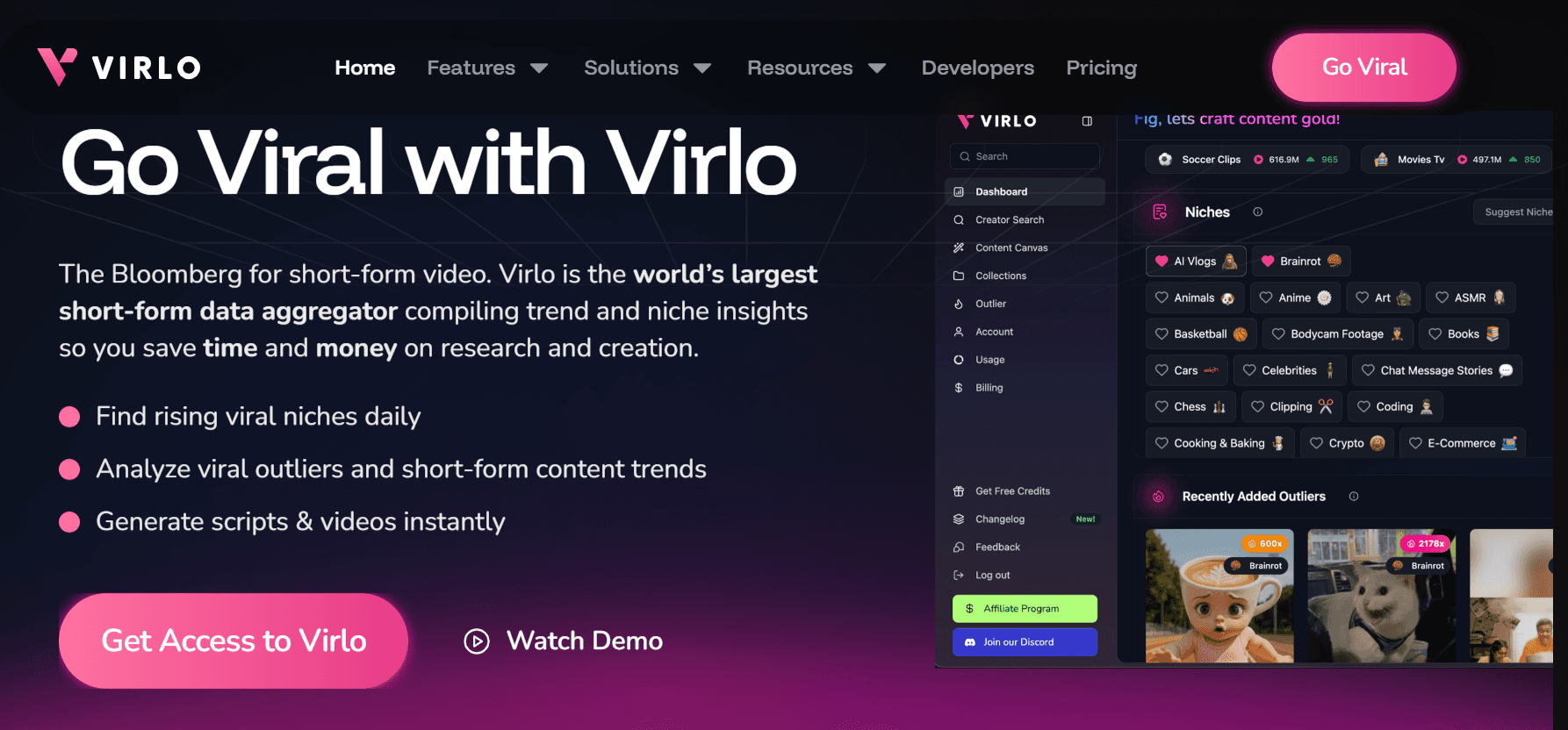
Virlo helps creators spot repeatable viral patterns using automated trend analysis and creator-level signals. It synthesizes what audio bites, visual motifs, and posting windows are currently performing, then surfaces idea seeds rather than leaving you to guess.
2. CapCut
CapCut is a feature-rich, social-native video editor available on desktop and mobile, built with short-form workflows in mind. It makes repackaging long videos into many short clips simple, and includes batch effects, smart auto-captions, and template-driven transitions.
Pros
Strong free tier, lots of social-ready templates, and auto-convert tools for turning long-form into many short clips.
Suitable for memetic edits, quick transitions, and fast export presets.
Cross-platform apps enable you to switch seamlessly between your phone and desktop without losing project continuity.
Cons
The feature volume can overwhelm creators new to editing, causing friction instead of speed.
Occasional bugs and version inconsistencies can interrupt tight publishing schedules.
Some advanced functions are hidden behind menus that take time to learn.
3. Filmora
Filmora is a desktop-grade editor with a comprehensive toolset and an extensive educational ecosystem surrounding it. The mobile variant, FilmoraGo, streamlines complexity while retaining the core editing power for creators who want a polished look on the go.
Pros
Robust creative controls for color, motion graphics, and multi-clip storytelling.
Active community resources and masterclasses if you want to level up editing craft.
Desktop export quality suits creators who aim to achieve broadcast-level polish with a consumer tool.
Cons
Steeper learning curve, so it is not the fastest path for total beginners.
The whole desktop app is paid, which matters if you need a no-cost workflow.
Mobile and desktop experiences differ enough that workflows need adaptation.
4. InShot

InShot is a widely adopted mobile editor that focuses on simplicity and speed, featuring useful AI-assisted tools such as auto captions and quick filters. It is the practical choice when you want fast turnaround without sacrificing basic creative control.
Pros
Extremely intuitive, quick to learn, and focused on social video needs.
AI captioning and one-tap enhancements streamline the posting process.
Good balance of basic effects with straightforward export options.
Cons
Easy to waste time experimenting with filters and effects instead of shipping.
Some capabilities sit behind in-app purchases, limiting the truly free experience.
For complex timelines or precision cuts, it can feel constrained.
5. Canva
Canva pairs simple video editing with a massive template library and social scheduling, which is handy when you want consistent formatting and a quick, branded look. It works well when visuals and typography take precedence over frame-by-frame cutting.
Pros
Instant templates for Reels, so you do not worry about aspect ratios or motion design basics.
Fast for creators already using Canva for graphics, with built-in scheduling.
Ideal for collaborative teams seeking consistent brand assets across all posts.
Cons
Editing depth is limited, so advanced transitions and granular timing are harder.
Templates can produce generic-looking output unless you actively customize.
Not ideal for precise audio syncing or complex multicam edits.
6. Splice
Splice provides a simple, capability-dense editor that has been battle-tested on mobile devices and now runs across multiple platforms. It gives sensible trim, speed, and audio tools, plus a broad music and sound-effects library for tight pacing.
Pros
Accessible interface with powerful features, allowing for quick and decent edits.
An extensive music library helps you find the right track without fuss.
Proven install base and reliability for everyday creators.
Cons
Some advanced features require payment, so it is not entirely free for power users.
Templates and effects are more limited than those found in full desktop packages.
For teams that require full feature parity across devices, minor inconsistencies may arise.
7. Clips
Clips, built by Apple for iOS, is a lightweight, camera-first editor designed to make snackable social clips in a few taps. It prioritizes ease of use and creative filters, then hands you a ready-to-upload file in your camera roll.
Pros
Extremely fast, especially on an iPhone or iPad, with seamless hardware integration.
Auto captions and simple effects enable casual creators to publish without experiencing editing fatigue.
Low friction to capture, edit, and export clips to Instagram.
Cons
Apple ecosystem only, so Android users cannot use it.
Too simple for creators who need granular control or advanced timelines.
Works best for spontaneous content, not carefully layered stories.
A pattern I see across creators
This challenge appears across solo creators and small teams: tools that promise depth often slow you down, while the simplest apps limit creative control. Early on, speed wins because frequent publishing teaches you what works; later, precision and brand consistency become more critical. That shift is why many creators move from an all-in-one mobile editor to a more deliberate stack, mixing a trend tool with a precise editor.
Status quo friction and the alternative
Most creators hunt trends and then open an editor, repeating the same manual research and cut cycle because it is familiar and low-cost. Over time, that routine fragments effort, producing inconsistent timing, missed audio hooks, and duplicated idea work. Platforms like Virlo change that pattern by centralizing trend signals and suggesting actionable combinations, thereby cutting discovery time and allowing creators to focus their editing hours on expression rather than guesswork.
A practical analogy
Think of these apps like kitchen tools: CapCut and InShot are sharp chef knives for everyday prep, Filmora is the commercial oven you use for bigger production, Canva is the mise en place kit that keeps your plating consistent, and Virlo is the cookbook that tells you which dishes customers want tonight. Pick the right tool for the task and context, then practice the few moves that matter.
One quick note about choosing
If you prioritize fast iteration and output, choose an editor with templates and auto-captioning, then pair it with a trend tool. If you prioritize consistent brand quality, pick Filmora or a desktop editor and accept the higher time cost per video in exchange for tighter control.
That simple choice now appears settled, but the next question reveals a deeper challenge about where your ideas actually originate.
Related Reading
• How to Make Money on YouTube Without Showing Your Face
• Highest RPM Niches on Youtube
• How to Make Money on Instagram Without Showing Your Face
• How to Make Money on Tiktok Without Showing Your Face
• Best Faceless Tiktok Niches
• How Much Does Tiktok Pay
• Faceless YouTube Channel Ideas
• Faceless Instagram Account Ideas
• Content Repurposing Tools
• Best Content Creation Tools
• How Do Influencers Edit Their Videos
• How to Make a Horizontal Video Vertical
• Tiktok Video Editing Tips
How to Find Content Ideas for Instagram in 10 Ways

Find Instagram content ideas by combining repeatable trend signals, systematic repurposing, and focused audience interrogation, then turn those inputs into predictable series you can schedule and iterate. Below are ten practical methods, each rephrased and expanded so you can start producing without guessing.
1. Use Virlo
Most creators hunt trends by scrolling and bookmarking, which works at first but becomes less effective as the volume grows. That familiar approach wastes time and produces inconsistent patterns of engagement. Platforms like Virlo analyze creator signals and trend data, surface combinations of audio, visual motifs, and posting windows that are actually working right now, and turn those signals into concrete prompts you can test.
Positioning points to watch for when evaluating a tool: speed of insight delivery, simplicity of the workflow, predictable quality across posts, accessibility for solo creators, and creator-first controls that let you keep your voice. Use the platform to reduce discovery time, stay aligned with fast-moving trends, and keep your content calendar fueled without relying on intuition alone.
2. Make a content series
Why settle for one-off posts when you can extend a single idea across multiple episodes that build authority and establish a loyal audience? Treat one broad topic as a micro-curriculum: outline four to six subtopics, assign formats (such as short video, carousel, or caption thread), and schedule them for weekly release. Series do two things at once: they increase your chances of repeat views, and they give you easy repurposing paths. If you plan a month-long run, each post can reference the previous one, improving retention without extra ideation work.
3. Revisit and repurpose old work
This is where low-hanging fruit lives. The pattern I see across new creators and small teams is the same: you publish, move on, and forget the gold you already made. Set a simple audit cadence, for example, one hour a week to scan the prior 12 months of posts. Convert a high-performing caption into a short video script, an under-watched carousel into a two-part Reel, or a popular comment thread into an FAQ post. Treat your archive as a content mine, not a museum.
4. Ask ChatGPT, precisely
Don’t ask generic prompts and expect beneficial results. When you ask an AI for ideas, include three specifics: who you are, what you want to sell or promote, and who you are speaking to. Then layer on constraints: preferred format, target length, and one SEO keyword if you wish to to drive search traffic. Ask for output in direct production-ready forms, for example, five Instagram caption hooks, three Reel hooks with timing notes, or storyboard bullets for a 30-second clip. Always vet the AI’s keywords with a proper SEO tool before committing.
5. Answer real audience questions
If your inbox or comments are thin, look beyond your own feed. Search competitors’ comments, read customer reviews on relevant products, and mine publicly visible Q&A sections to capture the phrasing your audience uses. One reliable approach, if you have limited reach, is to create a short survey and offer a simple incentive; three targeted questions will yield dozens of usable prompts. When you publish answers, format them both as snackable posts for social and as longer, searchable content for discovery.
6. Ethically borrow and reframe trends
You can learn from what’s trending without copying it. Use Google’s People Also Ask, niche search suggestions, and trending keywords as scaffolding, then add your angle, data point, or unique example. Ask: What nuance can I add that only I can provide? Keep a running idea file in a tool like Notion so that you can capture inspiration with a source link and your proposed twist. Then, schedule tests rather than chasing every trend.
7. Share the behind-the-scenes process
People follow people as much as topics. Show the small operational moves that make your work possible, a step-by-step timeline of a project, or a single decision you had to make and why. When you make the process public, you build trust and produce repeatable post formats. For creators who worry about oversharing, consider a more focused approach: select one aspect per week and keep it centered on value, rather than drama.
8. Talk about mistakes and lessons learned
Vulnerability scales when it is specific. One powerful format is the short fail case study, explaining what you tried, what went wrong, and the exact fix or rule you adopted afterward. This content nurtures your existing audience and reduces the pressure to be perfect. It also creates a searchable archive of practical lessons that you can reference when selling services or signing new clients.
9. Reframe the same idea for different audiences
You don't need brand-new concepts every time. Take one core idea and rewrite it for coaches, product-led businesses, and e-commerce sellers, adjusting the tone, metric examples, and calls to action to make it more relevant and effective for these audiences. This multiplies the utility of a single asset and strengthens SEO by creating interlinked pages that signal topic authority.
10. Publish industry myths and strong takes
Controversy that teaches is gold. Identify common false assumptions in your niche and dismantle them with evidence and a clear alternative. Frame these posts with a villain or misconception, state why it persists, then show the step-by-step correction. These pieces invite comments, shares, and saves when they challenge commonly held but incorrect beliefs.
Why these methods actually work
The underlying pattern I see is simple: creators run out of ideas because they lack systems for capture, testing, and repurposing. When you build small, repeatable rules — such as a weekly archive audit, a prompt template for AI, or a two-step series plan — ideation stops being emotional and becomes operational. That shift is what separates sporadic posting from a scalable content practice.
A reality check about audience and opportunity: remember that Instagram has over 1 billion active users every month. That reach means your niche exists somewhere on the platform, and with consistent systems, you will be able to find them. Additionally, note that 80% of Instagram users follow at least one business. That makes business-focused content inherently discoverable when you match signal to intent.
Where Virlo fits in the workflow
Most creators map trends by ad hoc searching and gut instinct, which is familiar and approachable. That approach breaks down as you try to scale, because manual discovery fragments effort, timing drifts, and you lose repeatable combos that perform. Solutions like Virlo centralize trend telemetry, recommend audio-visual-caption pairings, and surface posting windows, cutting discovery time and providing a short list of hypothesis-driven tests to run. In practice, this means spending less time guessing and more time producing consistent, testable content.
A practical checklist to get started this week
Block 60 minutes to audit your last three months of posts and flag three items to repurpose.
Sketch one 4-part series from a single topic you already own.
Write three precise prompts for an AI tool that include who you are, what you sell, and who you target.
Capture five audience questions from reviews or competitor comments and turn each into a micro-post idea.
This approach feels actionable because it trades creativity for process, and process wins when trends move faster than inspiration.
The surprising part is still ahead.
Go Viral with Virlo's Virality Analysis Tool
I recommend trying Virlo to stop guessing and turn trend signals into testable ideas, so you spend more time creating and less time chasing noise. Over 21.3 K creators already rely on it, and more than 1 million users have analyzed their TikTok profiles using Virlo. Start with one hypothesis, iterate quickly, and keep your voice intact as you scale.
Related Reading
• How to Put Two Videos Next to Each Other
• How to Add Text to Reels at Different Times
• How to Add Text to Tiktok Videos
• How to Repurpose Video Content
• How to Make a Video Longer
• Best Faceless Tiktok Niches
• How to Make Money on OnlyFans Without Showing Your Face
• How to Make a Video Collage
• What Content Makes the Most Money on OnlyFans
• Editing Software for Beginners
• OnlyFans Content Ideas
• How Hard is It to Make Money on OnlyFans
• How to Make Money Editing Videos
• Short Form Video Editing
More posts


Join the Virlo newsletter for free viral ideas
Empowering your success as a creator